
The Atomic platform provides users with real time access to their call records directly on the portal.
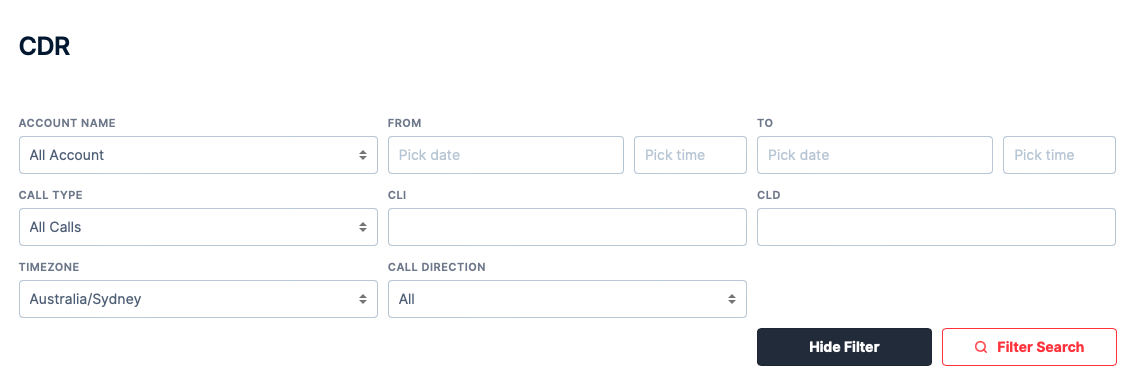
The 'Search CDR' toggle will allow you to filter CDR's, depending on what you are looking for. Below is some key definitions that may not be as obvious:-
Account Name - By default, it will show CDR's of all your account. You can select CDR's from a specific Account only should you choose to do so.
CLI - This is the caller's number. You can use this filter to search CDR's based on a specific CLI. You can also use a % as a wildcard. So searching for %0737 will search for all numbers that end with 0737. Searching for 61403% will search for all numbers that starts with 61403.
CLD - This is the number that the caller called. You can use this filter to search CDR's based on the called number. You can also use a % as a wildcard. So searching for %0737 will search for all numbers that end with 0737. Searching for 61403% will search for all numbers that starts with 61403.
Call Type - By default, the selection is All Calls. This will display all attempted and connected calls. Non Zero Duration Calls will display calls that was connected that has a duration. Zero Duration Calls will display all calls that do not have a duration.
Call Direction - You can search for CDR's for a specific direction - whether for Incoming or Outgoing or All.
Download CDR - This will download the CDR based on your search criteria. The file output will be in .csv format.